Appearance
The Appearance tab is where you set the console's theme. It's a per-user preference; switching accounts doesn't change it.
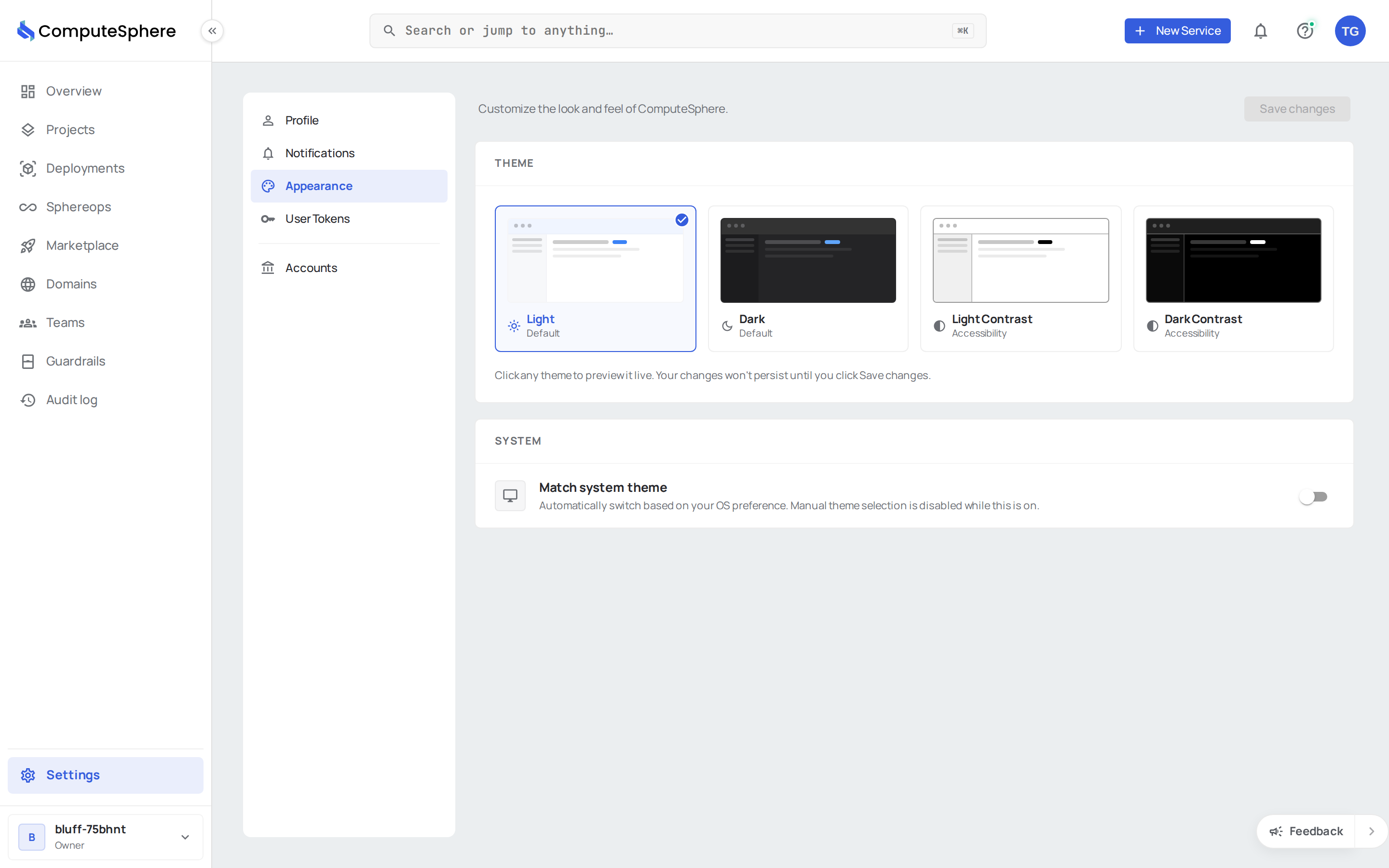
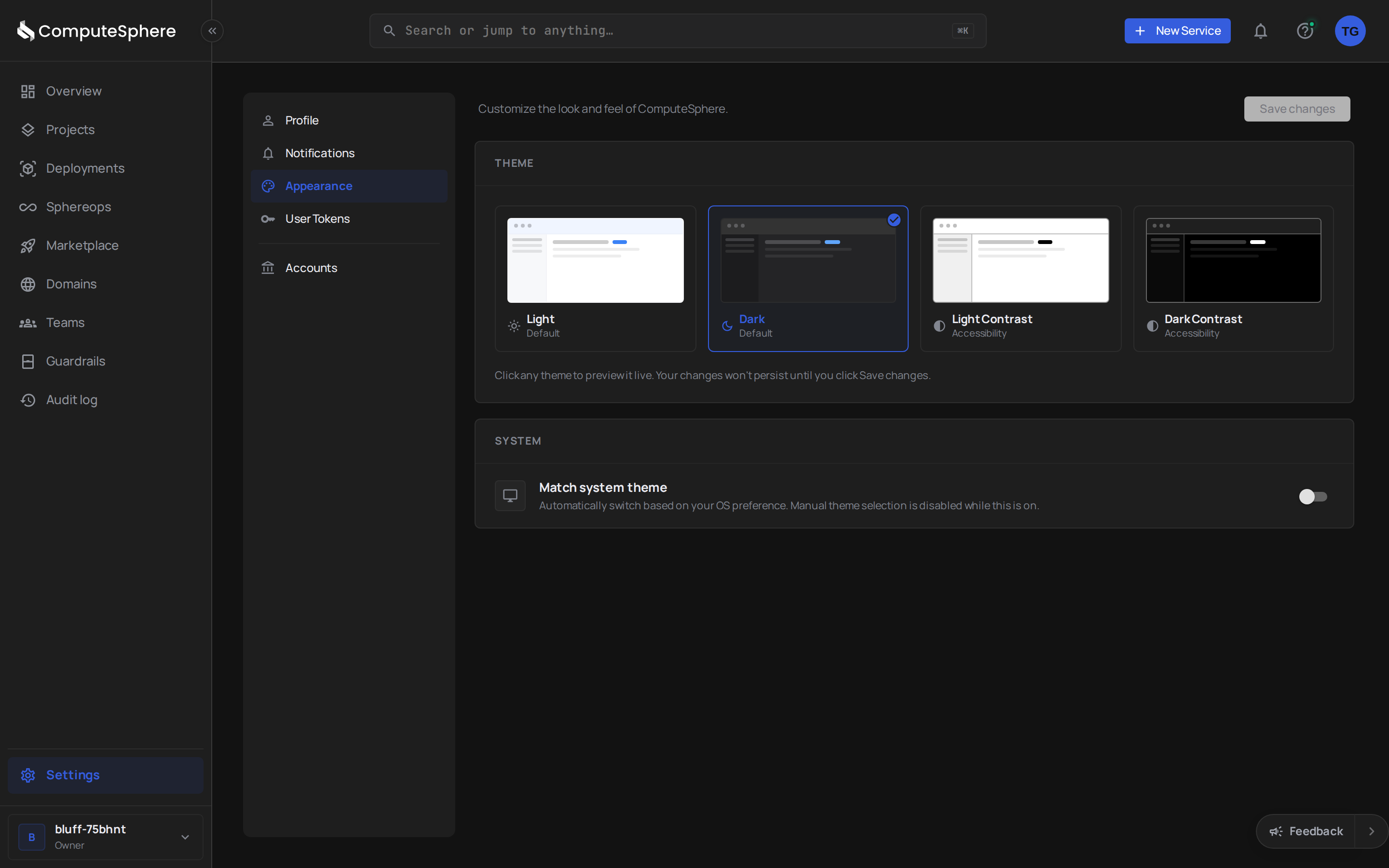
Themes
| Theme | When to use |
|---|---|
| Light Default | Bright environments, projector demos |
| Light Contrast | High-contrast variant of Light — meets stricter accessibility ratios |
| Dark Default | Low-light environments, long sessions |
| Dark Contrast | High-contrast variant of Dark — sharper text on dark backgrounds |
Sync with system
Flip the Sync With System switch and the console follows your operating system between light and dark. ComputeSphere uses Light Default in your OS's light mode and Dark Default in its dark mode.


Pick manually
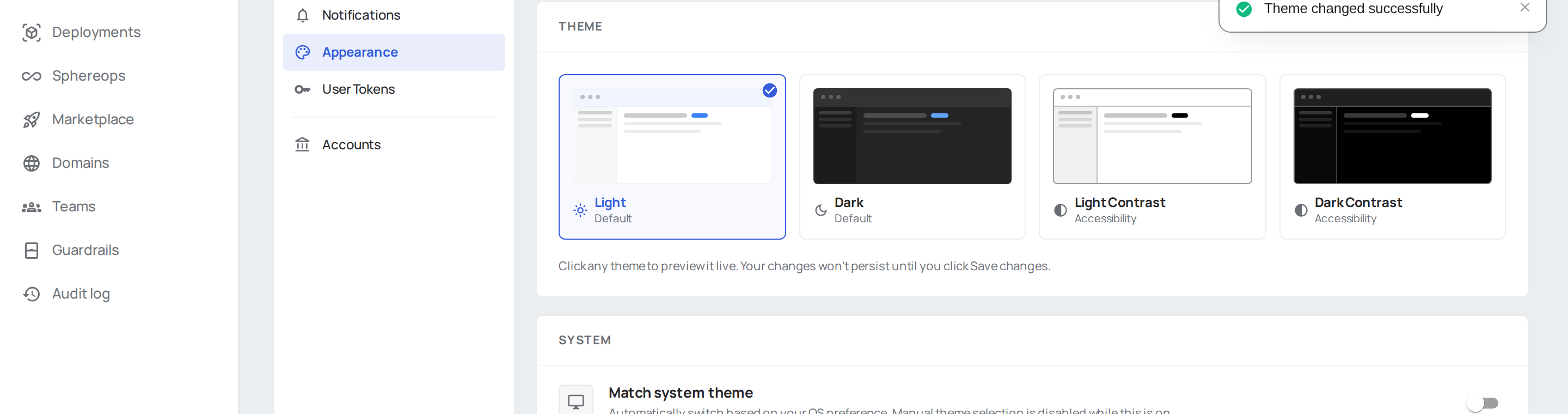
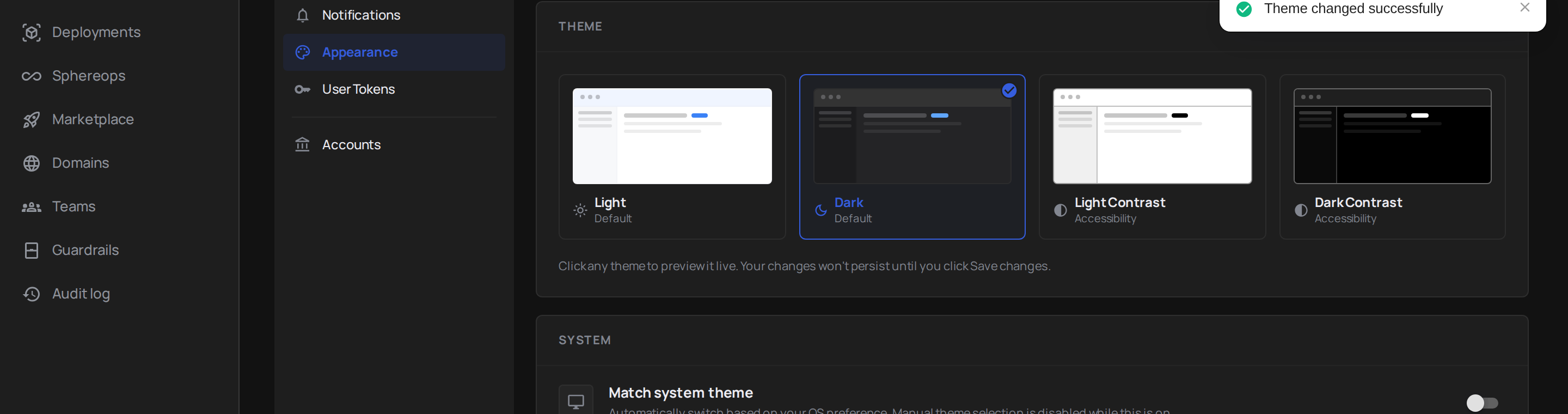
Turn Sync With System off and click one of the four themes. The console applies the change immediately.
Set the theme via the API
Theme lives on your profile. Update through PATCH /v2/users/me:
# Follow the OS
curl -X PATCH https://api.computesphere.com/v2/users/me \
  -H "Authorization: Bearer YOUR_API_TOKEN" \
  -H "Content-Type: application/json" \
  -d '{ "system_theme": true }'

# Pin a specific theme
curl -X PATCH https://api.computesphere.com/v2/users/me \
  -H "Authorization: Bearer YOUR_API_TOKEN" \
  -H "Content-Type: application/json" \
  -d '{
    "system_theme": false,
    "theme": "dark"
  }'
Valid theme values: light, light_contrast, dark, dark_contrast.
Honest limits
- Theme is a per-browser preference. It's stored on your profile, so every signed-in browser picks up the same setting next time you load the console — but in-progress sessions in other tabs only update on reload.
- No per-account theme. Switching to a different account doesn't change theme. If you want visual separation between accounts, the account picker in the header is the canonical indicator.
- No custom colors. Brand color, typography, and spacing are fixed; the four themes are the full palette.
- Marketing and documentation sites stay independent. computesphere.com/docs and the marketing site have their own theme toggles in their footers.
What's next
- Profile — the other personal preferences that travel with you
- Notifications — which events surface in the in-app bell
- Accounts — the active account, separate from theme